What it does

Features

When you draw an event, you mostly place pre-drawn blocks rather than model in 3D, so most of these commands focus on finding, placing and editing them.

F-01

Library

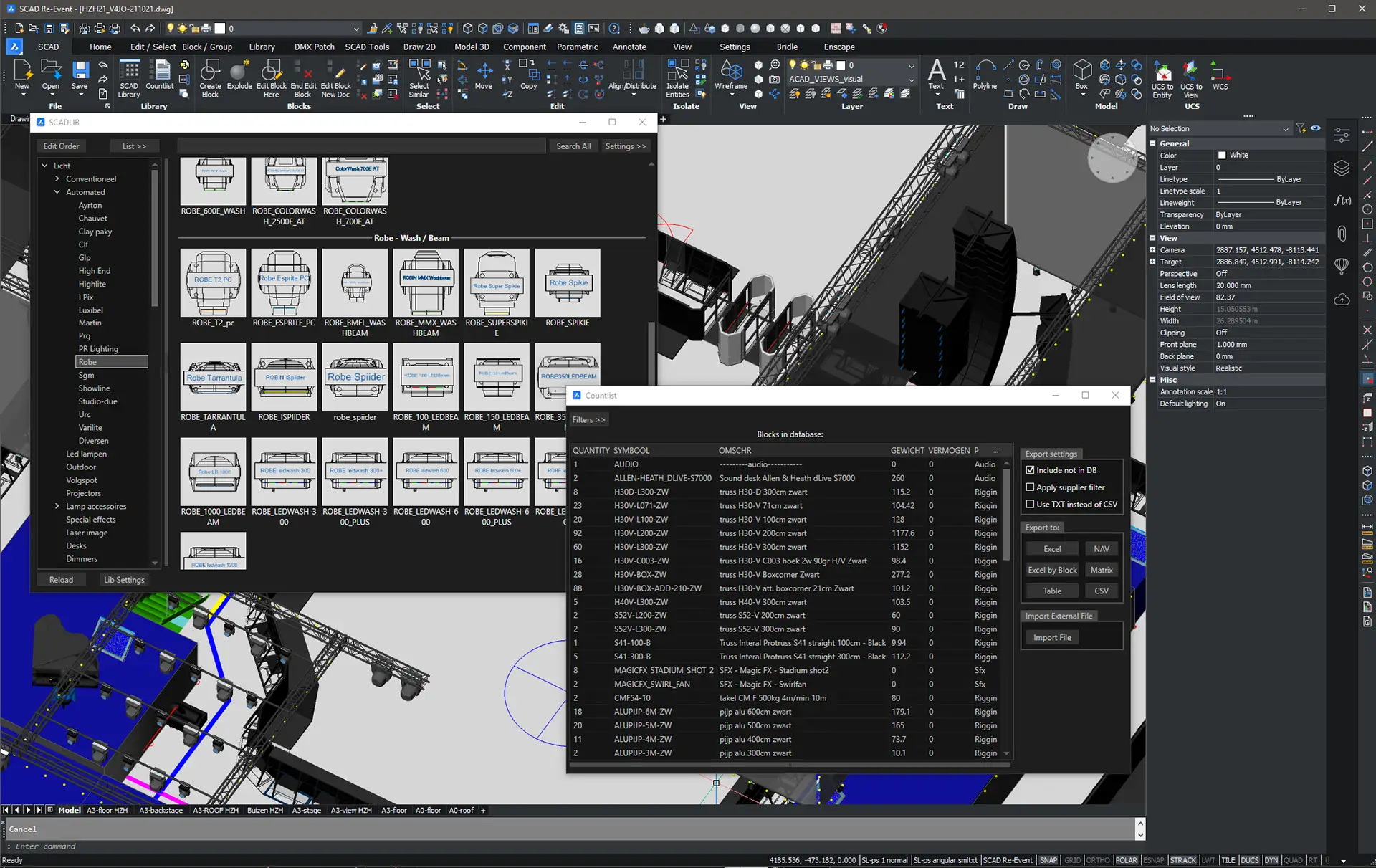
An extensive library of optimized blocks speeds up every drawing. Open it with SCADLIB.

  • Choose from 20,000+ objects, optimized to keep your drawing as fast as possible.
  • A database stores details for each block, such as weight and power.
  • Predefine the insertion layer for each block in a simple config file.
  • Add your own categories and blocks to the library.
SCAD Re-Event — SCADLIB · Countlist
The SCADLIB library browser showing Robe lighting fixtures, next to the Countlist window listing truss and audio blocks with weights
FIG. 01 The library sorted into groups, with Countlist open beside it.
F-02

Countlist

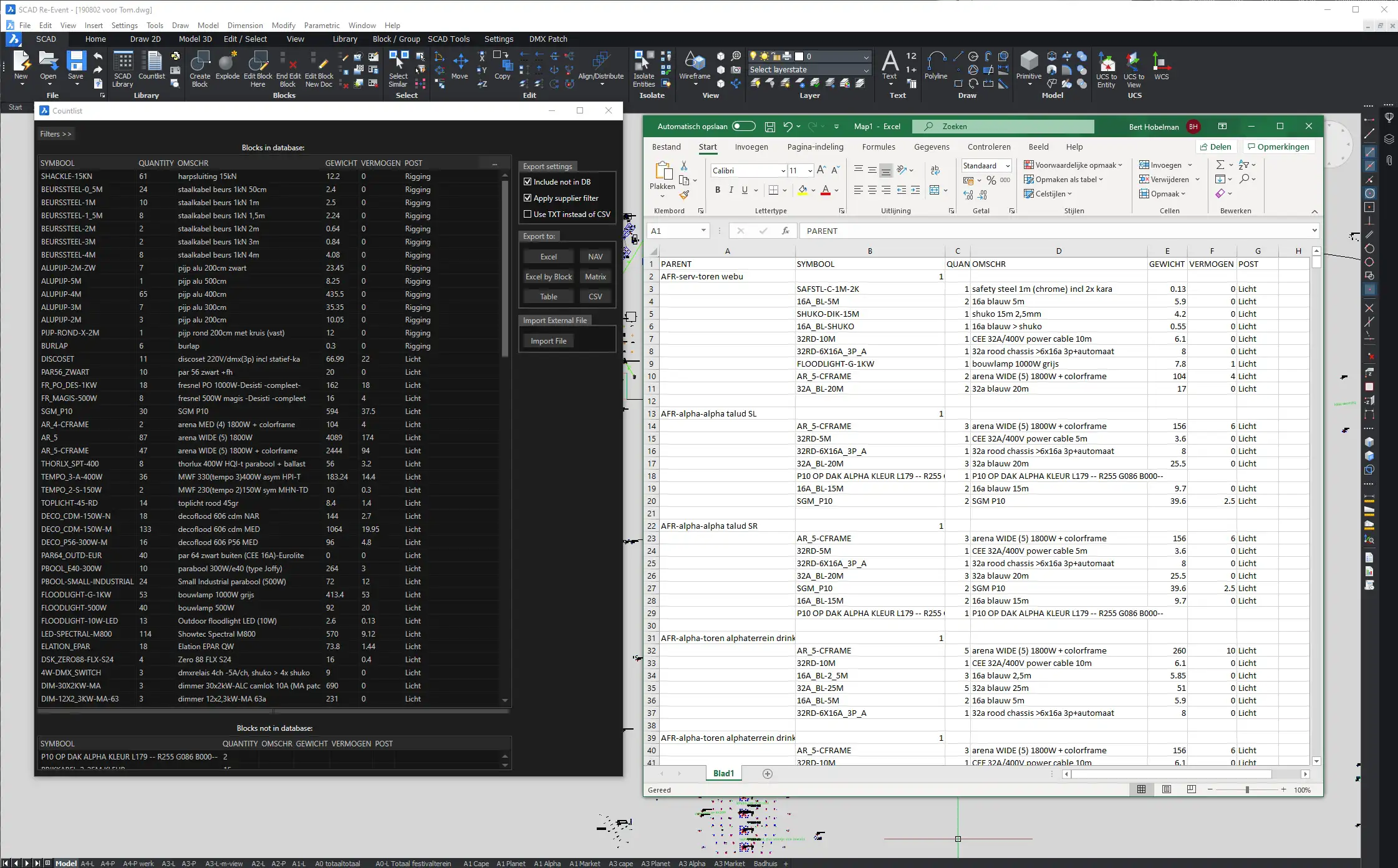
Run COUNTLIST to list the blocks in your drawing along with the details you need for each one: weight, power, description or article number.

  • Export the Countlist to Excel, NAV, Excel by Block, Matrix, Table or CSV.
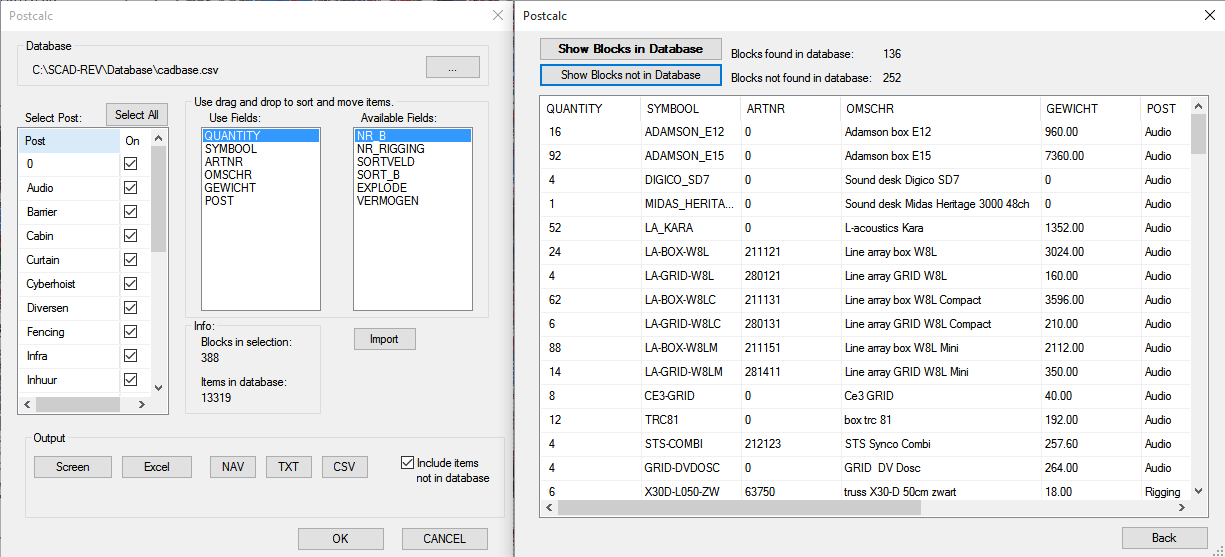
  • Need a bill of materials? POSTCALC totals the whole drawing or a selection, and you choose which fields to export.
SCAD Re-Event — Countlist · Excel
The Countlist window with its export buttons, next to an Excel sheet with the exported list, grouped per parent block
FIG. 02 Countlist and its export buttons, next to the Excel export grouped by parent block.
SCAD Re-Event — POSTCALC
The Postcalc dialog with category checkboxes, the used and available fields and output buttons, next to the resulting table of blocks with quantity, description and weight
FIG. 03 POSTCALC: pick the categories and fields, then send the bill of materials to screen or file.
F-03

Block Editor

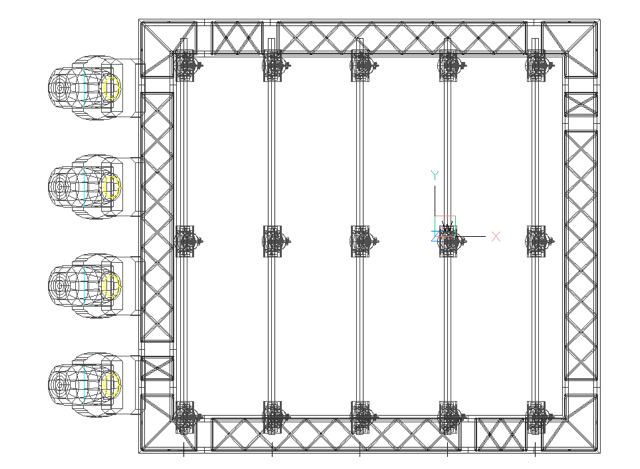
Edit blocks with the custom-built Block Editor, SCBEDIT. Each block opens in its own document, giving you full access to every drawing tool.

  • Click Save/Close to save the changes to the main drawing and close the block.
  • Click Update to push the changes and check them before closing the block.
SCAD Re-Event — Block Editor: truss combination
Top view of a truss combination with moving-head fixtures, opened on its own in the Block Editor and placed horizontally for editing
FIG. 04 A truss combination opened with SCBEDIT, on its own and placed horizontally for editing.
F-04

Move and copy

The redesigned move and copy commands let you rotate objects while dragging, then repeat the move at a fixed distance.

  1. Dragging

    Press X or Y to rotate the object 90° in 3D, or F9 to rotate it 45° around the Z axis. Hold Ctrl to rotate to a custom angle.

  2. Typed distance

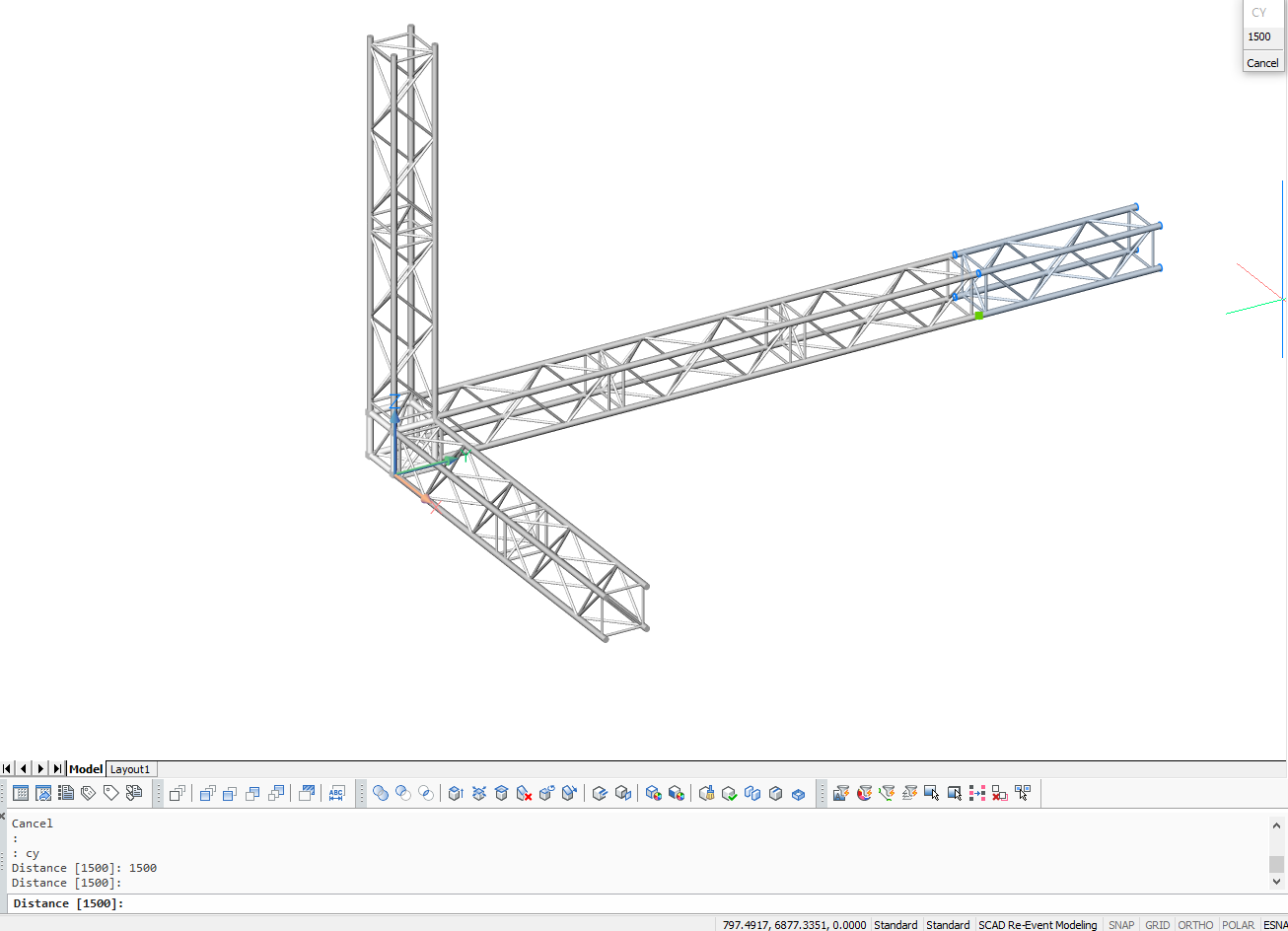
    CX CY CZ or MX MY MZ copy or move the object by the distance you enter.

  3. Preset distance

    CXFast CYFast CZFast or Ctrl + arrow keys copy the object by a distance you set earlier with SETCXY. That distance is saved across the application and converted when you switch to a drawing with different units.

SCAD Re-Event — CY
Three truss sections joined at a corner in 3D, with the CY command asking for a distance of 1500 on the command line
FIG. 05 Copy truss with CY at a distance of 1500.
F-05

Find blocks

Several selection commands let you pick exactly the objects you need.

  • Select blocks by name or by attribute definitions.
  • Or pick one block and let the program select similar ones based on name and properties.
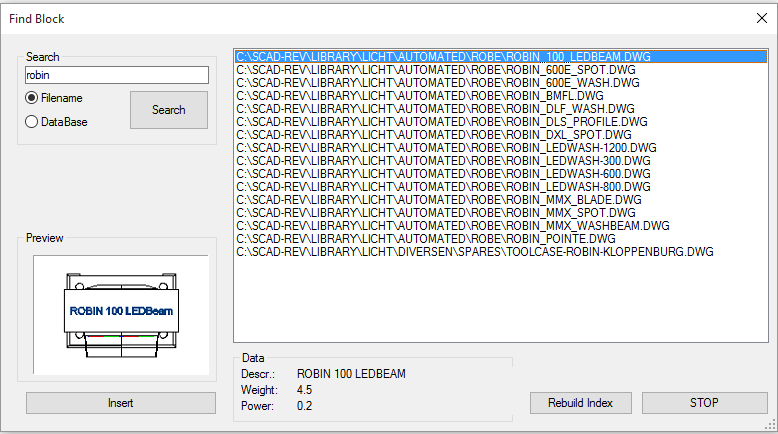
  • Can’t find a block? SCFINDBLOCK highlights any block matching your search text, even a partial match, and even when it’s nested inside another block.
SCAD Re-Event — Find Block
The Find Block dialog searching for “robin”, listing matching block files with a preview and the block’s weight and power
FIG. 06 The library’s Find Block dialog: search by file name or database, with a preview and the block’s description, weight and power.
F-06

And more

  1. A-01Rotate blocks dynamically.Ctrl
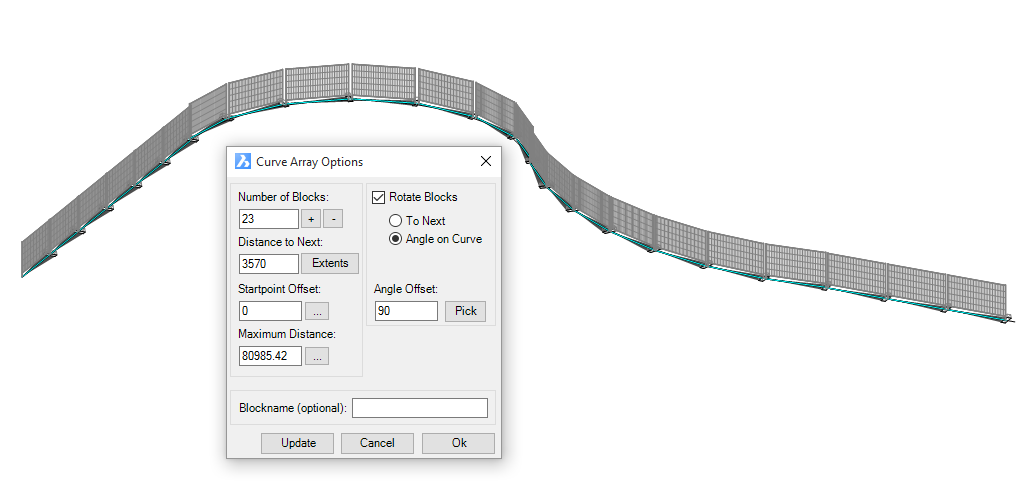
  2. A-02Create a curve array and edit its properties in real time.CURVEARRAY
  3. A-03Library blocks snap together at their connection points, and you can flip through alternatives while you place one.
  4. A-04Plan power, DMX and cabling in the drawing: patch by clicking, and cable lengths and labels update themselves.
  5. A-05Render all but the selected blocks as simple cubes to speed up the drawing.
  6. A-06Bring in real site context: aerial photos, cadastral maps, terrain and 3D buildings, plus KML and GeoJSON.
  7. A-07Replace a block with a .dwg file, or redefine all blocks in your drawing from another drawing.
  8. A-08Optional model checks find doubled, missing or clashing parts, based on your own rules.
  9. A-09Number and edit attributes in bulk, also through Excel, and replace blocks while keeping their attribute values.
  10. A-10Export the drawing, or single blocks, as GLB 3D models for viewers and presentations.
  11. A-11Share layouts as one link with SCAD Share (beta), so clients and crew can mark up the sheets or the 3D model.
  12. A-12Plus the full CAD toolset you expect: layouts, sections, dimensions and PDF publishing.
SCAD Re-Event — CURVEARRAY
Fence panels laid along a curve, with the Curve Array Options dialog showing number of blocks, distance to next and rotation
FIG. 07 Curve array: fencing laid along a curve, with adjustable count, spacing and rotation.

Contact

Questions or feedback?

Get in touch: call or email us.