

01 / 11
Intro
The library sits at the heart of SCAD Re‑Event. Many commands work with the library or with blocks, the parts you place in a drawing. Because event design relies mostly on pre-drawn blocks, you do not have to model 3D objects yourself (though you can, and every object in the library was built in SCAD Re‑Event). Finding, placing and editing blocks makes up much of the workflow, which is why so many commands focus on them.
The first part of this guide covers working with blocks. The second part covers specialized commands such as counting, line arrays, scaffolding and more.
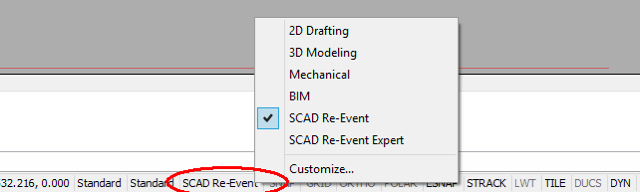
The screenshots show the SCAD Re‑Event workspace (ribbon). Switch to it by typing WSCURRENT and entering “SCAD Re‑Event”, or right-click the workspace name at the bottom of the screen.
You will find every command and feature in the manual. Check it for anything this guide does not cover.
02 / 11
The library
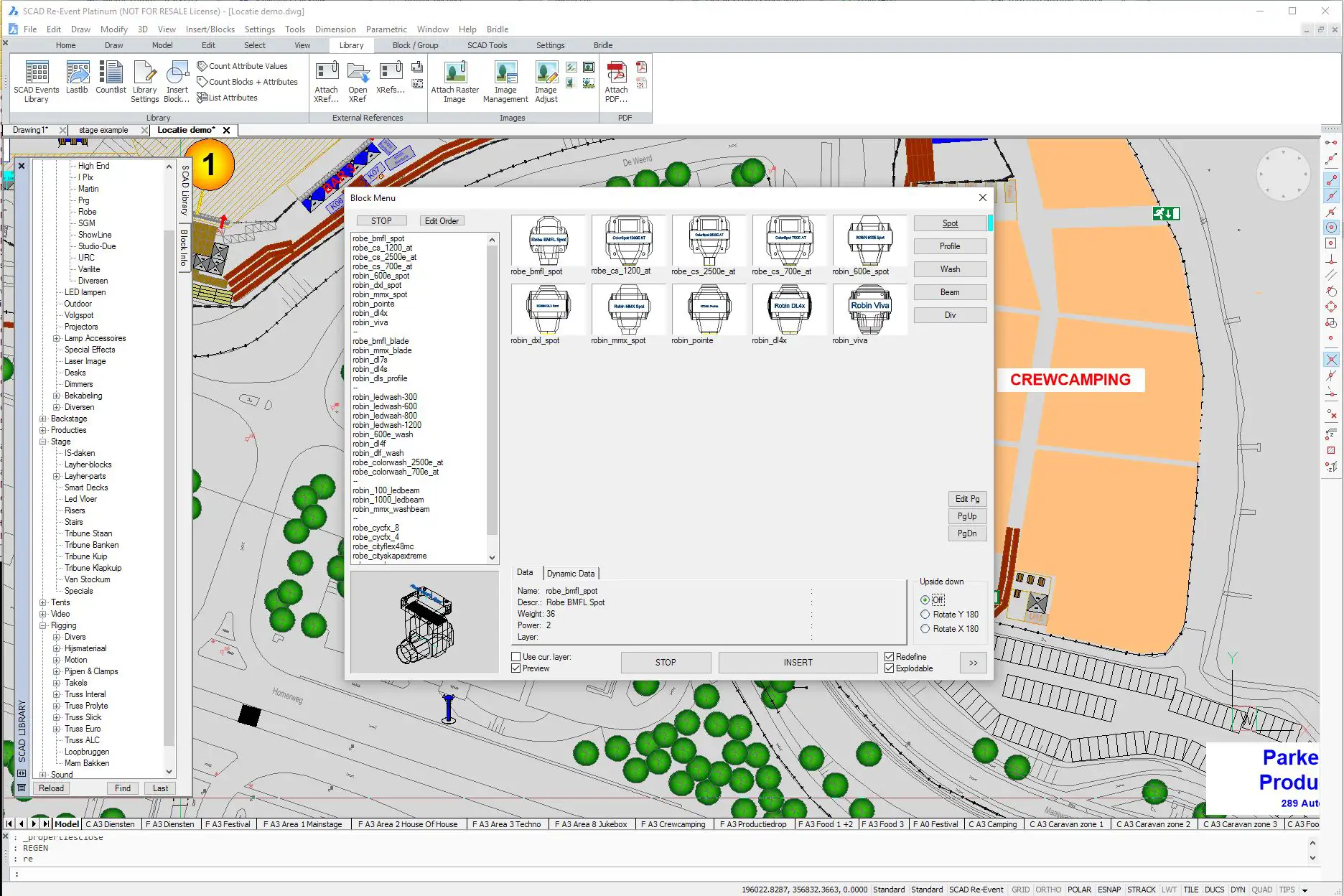
Inserting blocks
While inserting a block, you can use these keys and options:
| Key | Option | Action |
|---|---|---|
| Ctrl | Align | Hold the key to rotate the block dynamically. Rotating starts when you press Ctrl and stops when you release it. Combine it with entity snaps to align the block exactly with existing items in the drawing before you insert it. |
| L | Left | Rotates the block 45 degrees counter-clockwise. |
| F9 or R | Right | Rotates the block 45 degrees clockwise. |
| A | Angle | Asks for the rotation angle. |
| 0 | Reset | Resets the rotation. |
| D | Angle Dif | Asks for two angles and rotates the block by the difference between them. Mostly used with move and copy when the block is already rotated. |
| X | X | Rotates the block 90 degrees about its original X axis. |
| Y | Y | Rotates the block 90 degrees about its original Y axis. |
Update from library
UPDATEFROMLIB updates every block in the drawing to match the version in the library.
03 / 11
Selecting objects
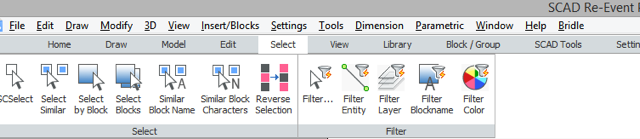
SELBLKSelect by block
Asks you to pick a single block, then selects all instances of that block in the drawing.
SELSIMBLKSSimilar block name
Similar blocks can share a name prefix and have different numbers at the end, especially after importing from other programs. Pick two blocks with the same prefix (for example “vl1000-12” and “vl1000-34”), and SCAD Re‑Event selects every block starting with those characters (here “vl1000-”).
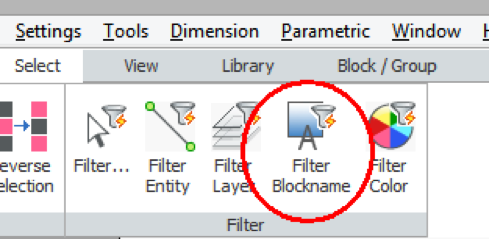
SFBFilter blockname
Filters are available for colors, layers, block names and object types, so a window selection picks only the objects you want. To select a specific block within a window, run SFB, pick the block, then select a window.
SCFINDBLOCKFind blocks, even nested
Type all or part of a block name, or press Enter to pick a block. SCFINDBLOCK highlights the matches, including nested blocks.
04 / 11
Move and copy
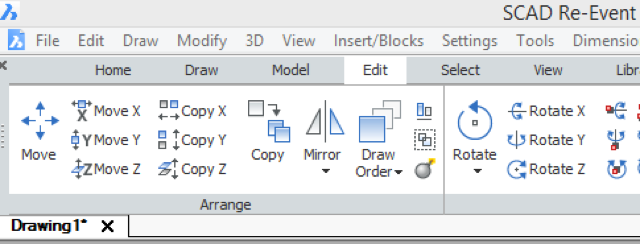
- Select the objects you want to move.
- Start the move with M2 (not MOVE), or click Move in the ribbon.
- SCAD Re‑Event asks for a reference point. With a single object, such as a block, Enter uses the default reference point of that object. With multiple objects, the default reference point is the bottom left of the selection.
During the move you have the same options as when you insert objects from the library (see the library).
05 / 11
Special move commands
MXMYMZMove along one axis
Moves the objects in the X, Y or Z direction. Enter the distance by clicking in the drawing or by typing a number. The number may end in “m”, “cm” or “mm”, which converts the unit. This only works correctly when the current units are meters or millimeters (enter UNITS to check).
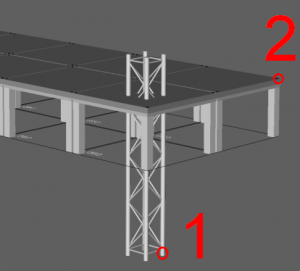
To move an object to a specific Z height, click the point that should move to the new height, then click the target height.
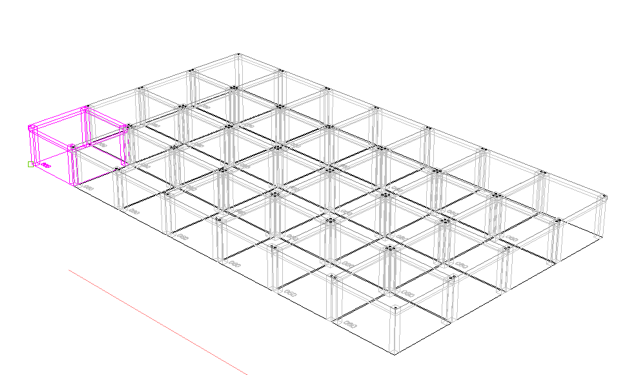
Example: moving a truss to the stage height with MZ.
06 / 11
Rotate objects
You can rotate objects while moving or copying them, or use the dedicated rotate commands below. Most are built for blocks and rotate about the block’s reference point.
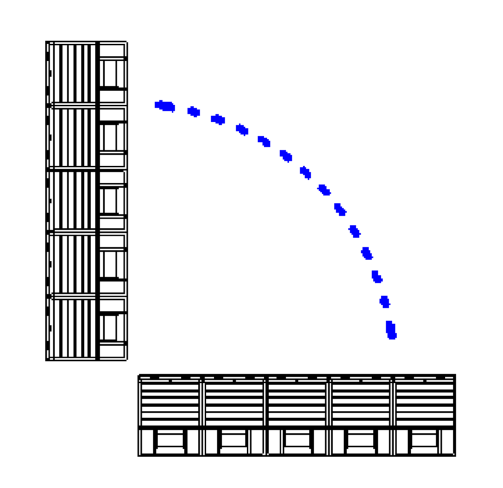
RXRYRZRotate about the X, Y or Z axis
A normal rotate command. All objects are rotated about the same point.
RXBRYBRZBRotate, each block about its own point
All objects are rotated about the X, Y or Z axis, but every item uses its own reference point.
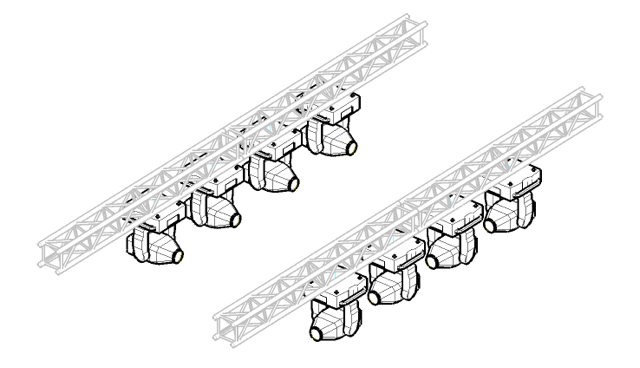
RXBIRYBIRZBIRotate about the block’s local axis
Rotates about the X, Y or Z axis, but uses the local axis of the block.
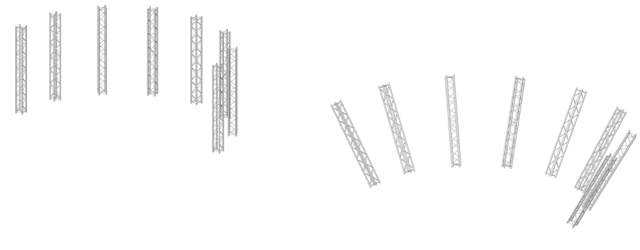
RBCLEANReset a block’s rotation
When a block is rotated about the Z axis, you can view and change the angle in the properties bar. Rotations about the X or Y axis do not show up there. RBCLEAN resets all angles and returns the block to its original orientation.
CBRBCopy block · Rename block
RB renames a block (you can also do this in the Drawing Explorer). CB makes an exact copy of a block under a new name, so you can edit one instance without changing the others.
CBICBIRChange block insertion
CBI changes the insertion point of a block. The position of the block stays the same, but its contents move. CBIR changes the insertion point and moves the block to a new position so that the contents stay where they are.
Note
When you change the insertion point of a block, all instances of that block get the new insertion point.
CURVEARRAYBlocks along a path
Originally created for fencing, but useful in many situations. After you change something in the menu, press Tab or click Update to see the effect in the drawing. The menu is modeless: you can zoom and pan while it is open.
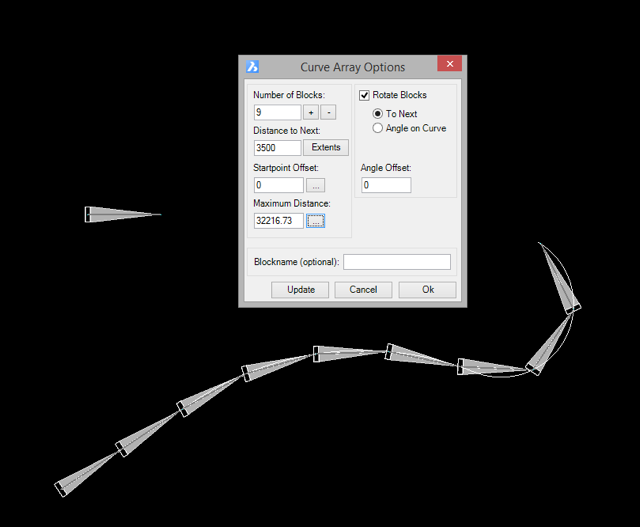
- Number of blocks
- Calculated automatically by dividing the length of the path by the length (X extents) of the block. If you change it, Distance to next changes too. Set one of the two.
- Distance to next
- Enter a distance, or click Extents to calculate how many blocks fit on the path.
- Startpoint offset
- Enter a number, or click a point on the path, to start the array further along the path.
- Maximum distance
- The array stops at this distance along the path.
- Rotate blocks
- With To Next, each block rotates along the curve to line up with the next block. With Angle on Curve, each block follows the angle of the curve at its insertion point.
07 / 11
Block Editor
An easy way to organize a complex drawing is to group parts of it into blocks, which can in turn contain sub-blocks. The example below edits a stage inside a venue using SCBEDIT.
-
Find the block you want to edit
In this drawing one block is highlighted: the STAGE.
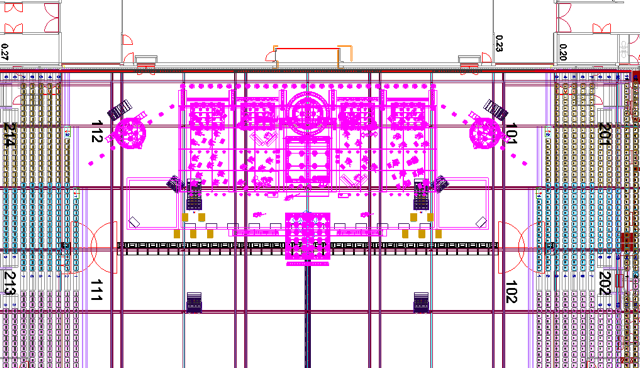
FIG. 11 The STAGE block highlighted in the venue plan. -
Enter the block with SCBEDIT
Now you can edit the stage without the building in view.
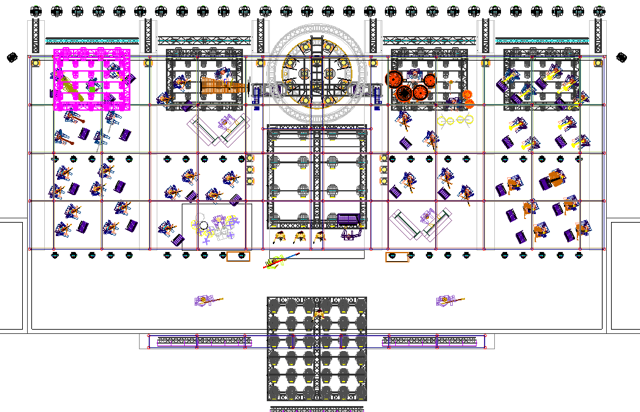
FIG. 12 Inside the STAGE block. -
Go one level deeper
In the STAGE block, edit the truss combination with SCBEDIT again. In the stage this combination is rotated around the Y axis.
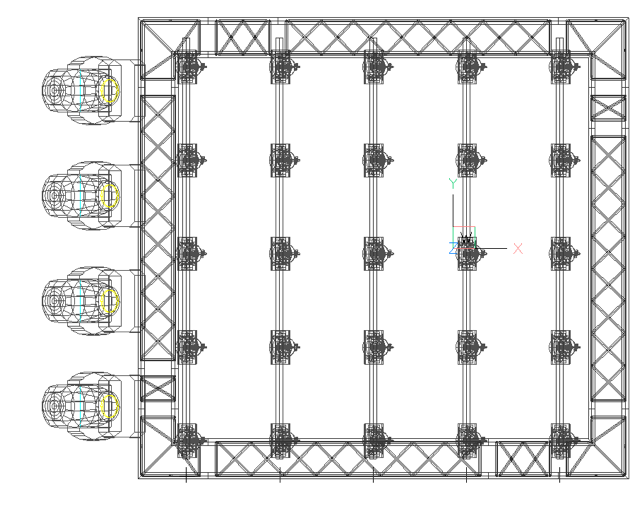
FIG. 13 The truss combination, opened from inside STAGE. -
Edit the part
The objects are now placed horizontally instead of rotated as they are in the stage itself, which makes them much easier to edit.
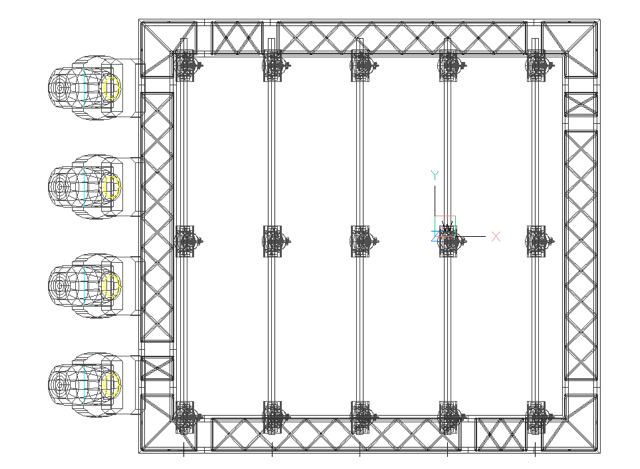
FIG. 14 The part to edit, placed horizontally. -
Save with BESAVE
Run BESAVE. In the Choose Drawing dialog, click Update to send the changes to the main drawing and keep editing (UNDO still works). Click Save/Close when you are done.
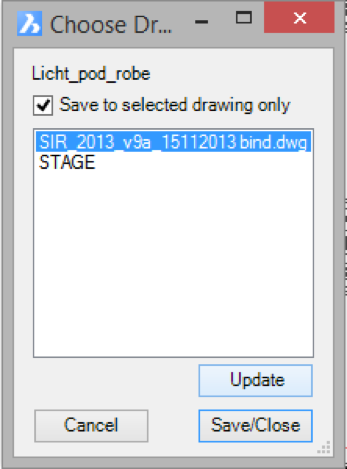
FIG. 15 The Choose Drawing dialog after BESAVE: pick the drawing, then Update, or Save/Close when done. -
Check the main drawing
Switch to the main drawing (the drawing tabs at the top) to see the update.
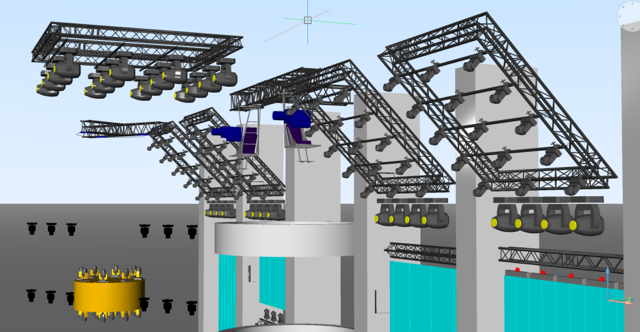
FIG. 16 The change is visible in the main drawing.
Tip
Working in a complex drawing can make editing slow and cumbersome. Besides blocks, you can hide objects and switch to a simplified version of the drawing.
08 / 11
Blocks, part 2
REPLACEReplace blocks
Use REPLACE to swap one block for another. To replace every instance, select them first with SELBLK or another selection filter. You can also select several different blocks and replace all of them with a single block at once.
SCFINDBLOCKFind blocks
To see where a block is used, select it in the Block Info menu in SCADLIB with the Highlight switch on, or enter SCFINDBLOCK.
LEGENDLegend from a block
Places a legend for the selected block in the drawing. You can set the size. The description comes from the database.
09 / 11
Counting objects
There are two ways to count: a fast check for use while you build the design, and a bill of materials meant for export.
Fast check
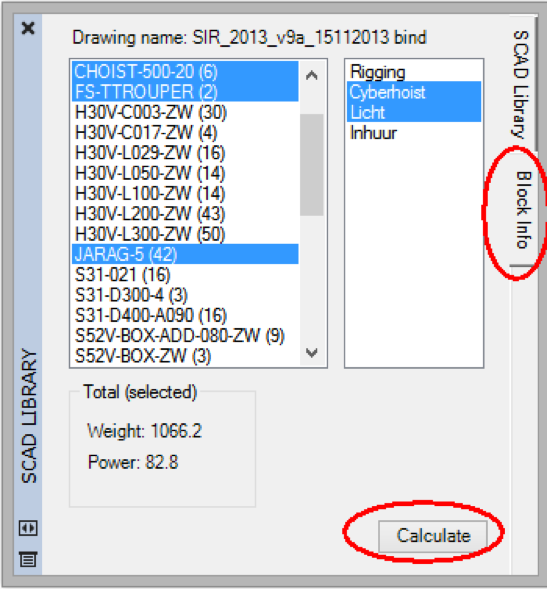
In Block Info, select one or more blocks or pick categories on the right, then click Calculate to see the totals. Nested blocks are no problem: SCAD Re‑Event counts them accurately too.
Bill of materials
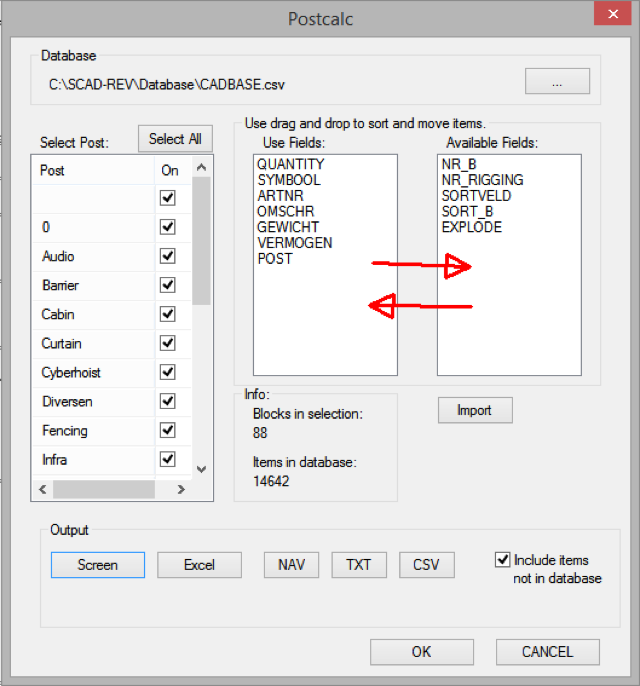
POSTCALC totals the whole drawing or a selection. Drag fields left or right to choose what gets exported. For an exportable block-by-block list with weight, power, description and article number, use COUNTLIST (see Countlist).
Field names
Field names are defined in the database, so you can use any name you like. To get power and weight totals, name those fields POWER and WEIGHT (or in Dutch VERMOGEN and GEWICHT).
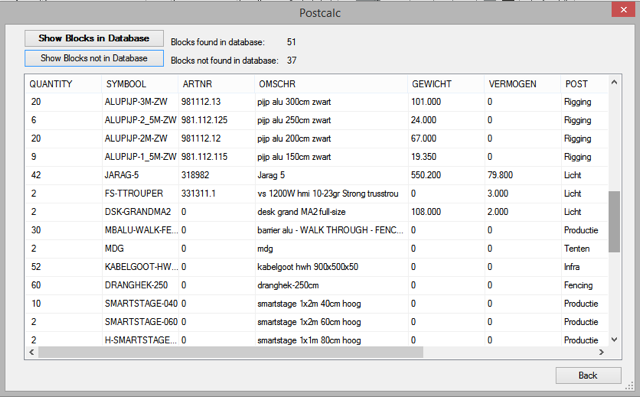
Click SCREEN to preview the results.
Note
This screen only shows blocks whose names exist in the database file. To check for blocks missing from the database, click Show Blocks not in Database.
10 / 11
Miscellaneous
SCBLOCKTREEUsing the tree view
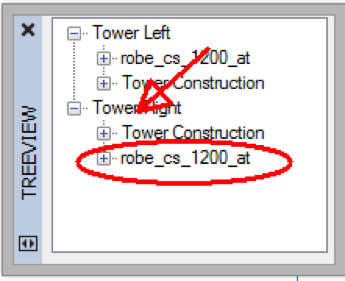
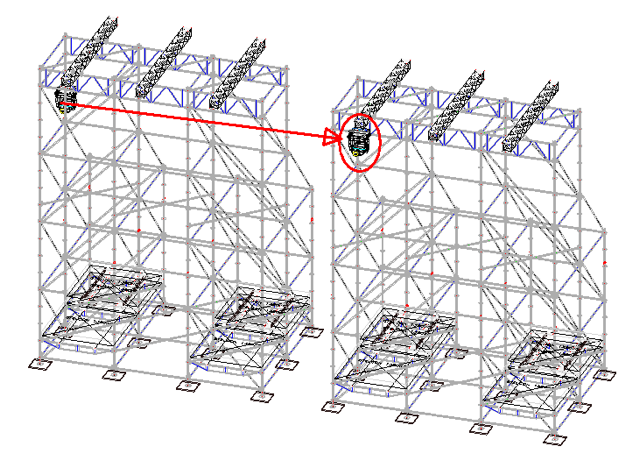
You can edit blocks in the tree view, which you open with SCBLOCKTREE. It shows the selected blocks, or all blocks when nothing is selected. Drag a sub-block with the left mouse button to move it to another block, or with the right button to copy it.
Caution
This is a powerful command. Make sure you know what it does before using it.
Line array
In SCADLIB, an LA button appears in the lower left of the icon menu whenever the page name starts with “LA”.
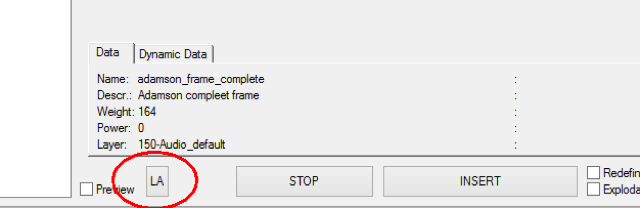
Click it to open the Line Array menu. Click a block to add it to the array. You can change angles as long as the menu is open. Enter a name in the field below and click Create Block to turn the array into a block. The array is created at 0,0 in the drawing, and you can zoom and pan while the menu is open.
Hiding objects
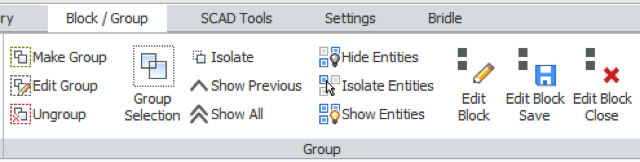
You can hide objects or isolate them, and you can run Isolate multiple times to narrow down what stays visible. When you are done, click Show All to unhide everything, or Show Previous to step back one level and isolate again.
Groups
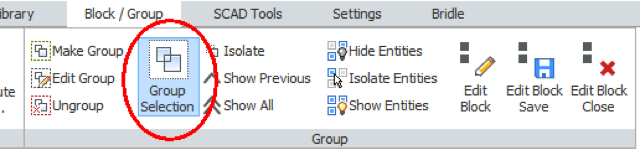
Groups are handy when you want to save a selection for later. Once you create a group, clicking Group Selection selects the whole group at once.
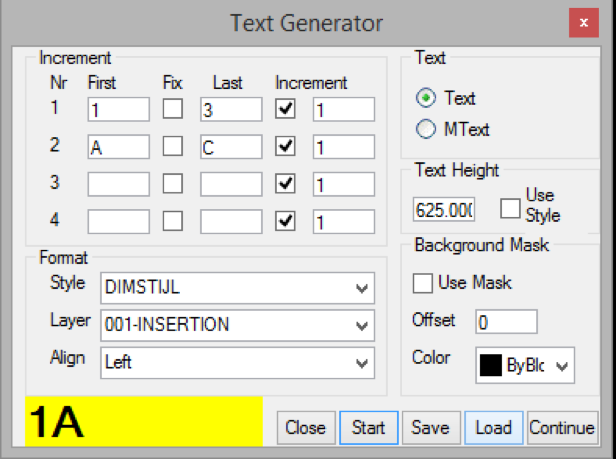
Text generator
The text generator creates sequences like 1A 1B 1C 2A 2B 2C 3A and so on. If you select Fix, that number (or character) does not increase.
Scaffolding
Useful for scaffolding:
- CX CY CZ
- Rotate during move/copy F9
- X2072 X-2072 Y2072 Y-2072
- STPLAN
- Section commands
- SHOWDUPBLKselects all duplicates
- POSTCALCbill of materials
- SCFINDBLOCK
11 / 11
Keyboard shortcuts
| Key | Action |
|---|---|
| Ctrl + A | Select all objects, except invisible ones. |
| PgUp | Plan view. |
| PgDn | Isometric view. |
| F1 | Nearest snap. |
| F2 | Endpoint snap. |
| F3 | Snap on/off. |
| F4 | Intersection snap. |
| F5 | Toggle Z=0 on/off (OSNAPZ). |
| F9 | Rotate the object while you move, copy or insert. |