
Incidents
Log incidents at the location, acknowledge them, watch the response clock and follow escalations through to resolution.
An incident is a work item for something that happened and needs a response: a medical call, a broken barrier, a crowd issue. It is logged at the place it occurred, carries a category and priority, and stays visible to the people responsible until it is resolved.
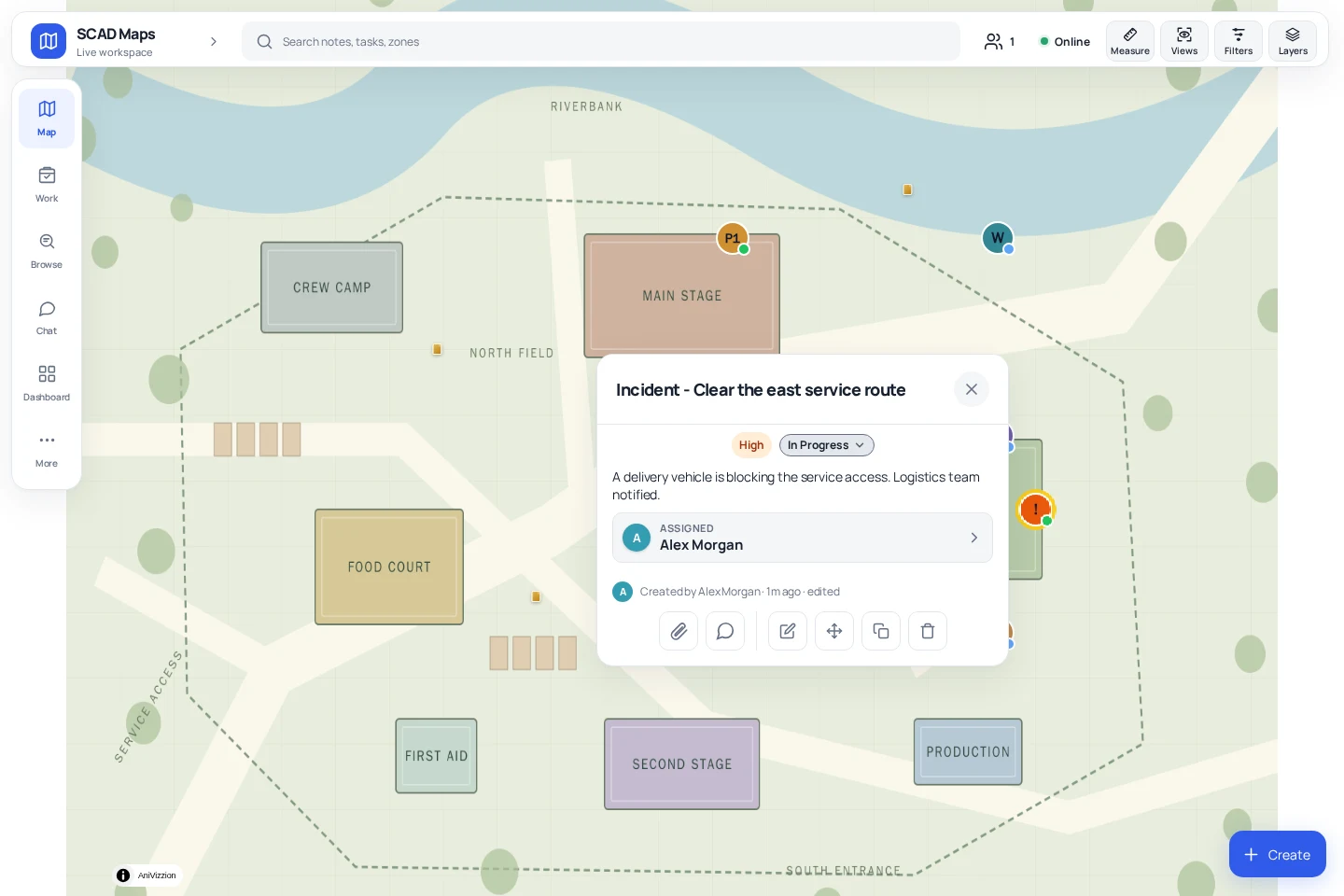
Log an incident#
- Right-click the map (long-press on a phone) and choose Add Incident, or open the Incidents list and start a new one.
- Choose a quick category button, or pick one from the Category list. A category can pre-fill the report text, set a default priority and pre-select the groups to involve.
- Choose the Area the incident belongs to, if any.
- Write the Report (up to 1,000 characters).
- Set Priority (Priority 1, 2 or 3) and Status (Open, Active or Resolved).
- Tick the groups under Involved, then choose Create incident.
Categories are managed by administrators and can be arranged in a tree. The Suggest a category switch on the form proposes a category from the words you type; turn it off if you prefer to choose yourself.
Priorities and statuses#
| Priority on the form | Stored as |
|---|---|
| Priority 1 | Critical |
| Priority 2 | High |
| Priority 3 | Medium |
Editing an incident afterwards also offers Low and the task statuses Blocked and Closed. Incidents share the task model, so the statuses and priorities match those in Tasks and checklists.
Acknowledge#
An incident that nobody has taken ownership of shows a pulsing marker while it is critical and unacknowledged. Once someone responsible acknowledges it, the pin shows a tick and the incident panel records who acknowledged it and when.
- The creator, assignees, members of assigned groups and administrators can acknowledge.
- Only the person who acknowledged it, or a full administrator, can undo the acknowledgement from the panel. Undoing it re-arms the response clock.
- Acknowledging is not yet a button in the incident panel. It is sent through the API, so ask your administrator how your team acknowledges incidents.
Response clock and escalation#
Instances can turn on an automatic response clock. When it is on, an incident that is not acknowledged before its clock runs out is escalated a tier at a time, up to three tiers:
| Tier | Who is alerted |
|---|---|
| 1 | The assignees and members of the assigned groups. |
| 2 | Tier 1 plus every administrator, so a critical incident cannot fall through when the assignee is offline. |
| 3 | Tier 2 plus a ping to the group chat. |
The default clock depends on priority: 10 minutes for Critical, 30 for High, 120 for Medium and none for Low. You can override the minutes for a single incident. While a clock runs the panel shows Ack in m:ss, then OVERDUE once it lapses, and everyone who can see the incident gets a warning when it escalates.
Who sees an incident#
Incidents follow the same visibility rules as tasks: an incident assigned to specific people and no group is private to them, its creator and administrators; otherwise it is visible to everyone who can see the map. Restricted users only see incidents that involve them or their groups.
The incident log#
Administrators can open the incident log in the dashboard for a table view. It lets you set Happened at when an incident is written up after the fact, so the log reflects when it occurred rather than when it was typed. That time cannot be more than five minutes in the future, and changing it is recorded in the incident's history.
Discussion#
Every task and incident has its own chat thread for the people who can see it. Open it from the panel or reach it through Team chat.