
The workspace at a glance
A tour of the Field Desk workspace: navigation, map controls, panels, the command palette and the classic layout.
SCAD Maps ships two layouts. The default described here is the Field Desk workspace. Its principle is that the map stays on screen and everything else opens beside the control that opened it. The older layout, called classic, is covered at the end of this page.
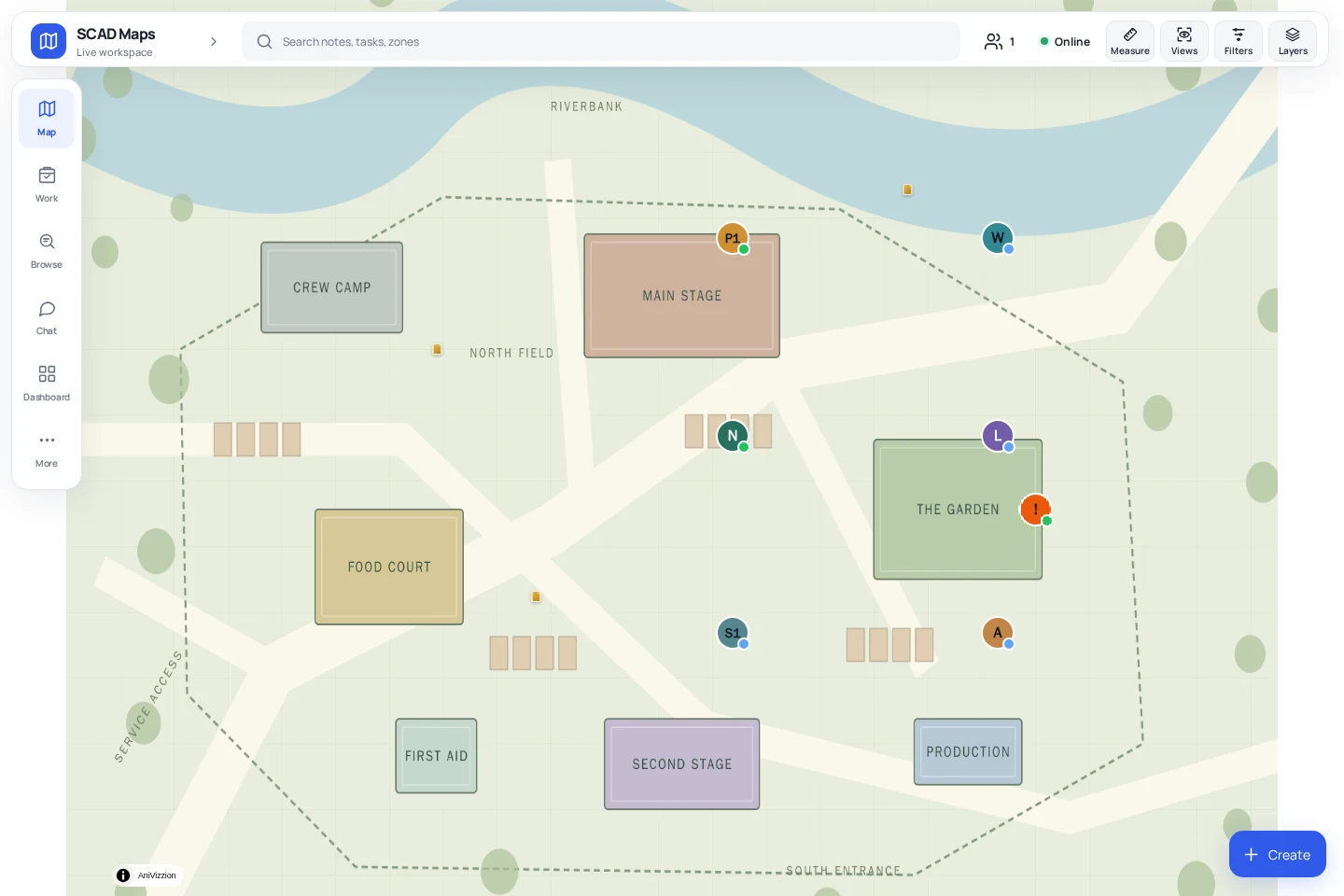
Top bar#
| Control | What it does |
|---|---|
| Event name | Opens the dashboard. |
| Search or jump to… | Opens the command palette (Ctrl + K). See Search and the command palette. |
| People | Shows how many colleagues are online and lists them. |
| Connection | Shows Online, or the offline and sync state, and opens details. |
| Measure | Measures a distance or an area on the map. |
| Views | Saved views and the orientation controls. |
| Filters | Shows or hides items by group. |
| Layers | Venue plans, overlays and other map layers. |
Sidebar#
On a desktop the sidebar runs down the left edge. Press [ or use its collapse button to shrink it to an icon rail. The choice is remembered on that device, and the sidebar shrinks by itself while the dashboard is open.
- Map: returns to the map and closes any open panel.
- My work: the tasks and incidents assigned to you or your groups.
- Chat: the team chat drawer.
- Browse: Tasks, Incidents and Notes quick lists, Personal notes, Saved views and History.
- Dashboard: the heavier management screens. Some parts are for administrators only.
- Shortcuts: the keyboard shortcut sheet.
- Your account button at the bottom: account menu, Appearance, Notifications & location, Refresh app and log out.
On a phone the sidebar becomes a bottom bar with Map, My work, Browse, Chat, Dashboard and More.
Map controls#
A column of buttons on the right edge of the map holds:
- undo and redo for your last map movements, so an accidental pan is one press away from being reversed (Ctrl + Z and Ctrl + Shift + Z);
- zoom in and out;
- a compass that points north and resets the bearing when pressed, a 2D and 3D tilt toggle, and a button that centres the map on you.
Creating things#
The Create button opens a small menu with Note, Task and Zone. Each has a single-key shortcut (N, T, Z). You can also right-click the map, or long-press on a phone, to start something at that exact spot. Incidents are logged as tasks of the incident kind; see Incidents.
Where panels open#
Panels and sheets open next to the control that opened them and never on top of it:
- from the sidebar, they dock on the left beside it;
- from the top bar and the map controls, they dock on the right under the top bar;
- from a keyboard shortcut or the palette, they open on the side where their own button lives;
- a pin you tap opens its sheet at that pin;
- on a phone everything is a bottom sheet above the navigation bar.
Press Esc to close the topmost panel. Drag a phone sheet down to dismiss it.
Help without leaving the map#
- ? shows every keyboard shortcut; see Keyboard shortcuts.
- Refresh app in the account menu reloads the page if something looks stuck.
- When a new version is ready, a persistent Reload toast appears. It never reloads on its own, so nobody loses a half-written note.
The classic layout#
The classic layout keeps the round action button, the layer menu, the status bar and the chat launcher, and a dashboard with a horizontal tab strip. It is kept for people who prefer it and receives only security and data-correctness fixes, not new features.
Switch under Appearance (Switch to the classic layout). The app reloads into the chosen layout, and the choice is remembered per device. Your administrator may also set which layout devices start in when nobody has chosen yet.