
Tasks and checklists
Create, assign and track work on the map: status, priority, deadlines, checklists, tags, pin labels and duplicates.
A task is a piece of work with a place, an owner and a status. Tasks show as round pins on the map, and everyone assigned to one sees it in My work. Incidents are a separate kind of work item with their own form; see Incidents.
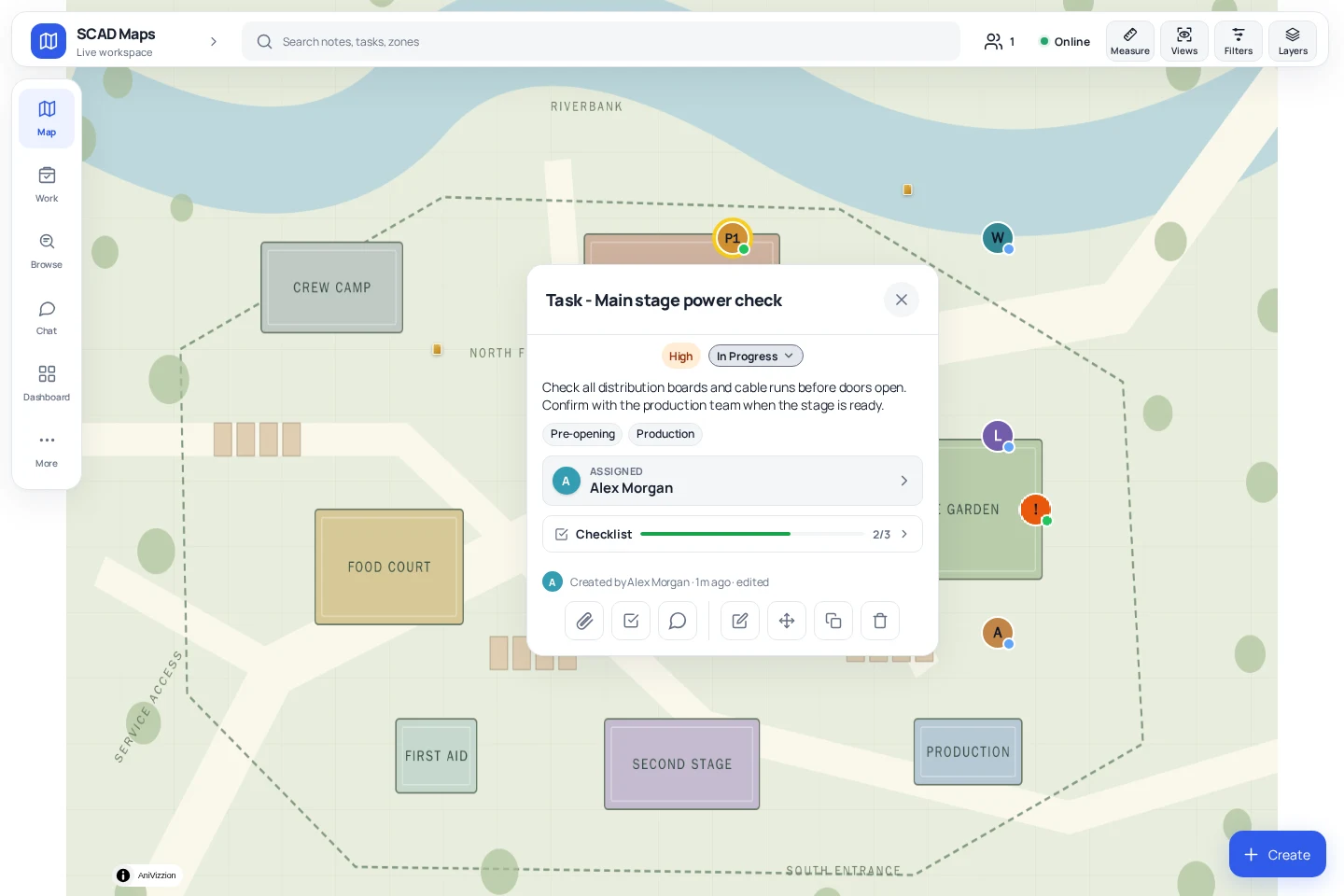
Create a task#
- Press T, or choose New task from the Create menu. You can also right-click the map (long-press on a phone) and choose Add Task.
- Tap or click the map to place it. The form opens beside the pin.
- Type in Description. The first line becomes the title (up to 140 characters); everything below is the description (up to 1,000 characters).
- Choose Assign to pick people and groups, or leave it as Unassigned.
- Choose Create task.
Open More options for priority, a due time, a visible-from time, tags and the map pin look. These are folded away because most tasks do not need them.
Status and priority#
| Status | Meaning |
|---|---|
| Open | Not started. Every new task starts here. |
| In progress | Someone is working on it. |
| Blocked | Waiting on something else. |
| Resolved | The work is done. |
| Closed | Finished and filed away. |
Change the status with the Status field when editing. Resolving a task stamps the time it was resolved; reopening it clears that time. Priority is Critical, High, Medium (the default) or Low, and colours the pin when no assigned group colour or fixed pin colour applies.
Assign people and groups#
Assign opens a picker. You can choose up to 24 people and up to 12 groups (custom roles). A task assigned to a group reaches every member of that group.
- A task assigned to specific people and no group is private to those people, its creator and administrators. Other users do not see it on the map.
- A task with a group, or with nobody assigned, is visible to everyone who can see the map.
- Restricted users can only assign tasks to their own groups.
Assignees are notified live and by push notification when notifications are enabled. Notifications only go to people who are allowed to see the task.
Checklists#
A task can carry a checklist of up to 50 items. Choose the checklist button in the task panel to add items, tick them off, rename them or remove them. The task shows an n/m progress badge in My work.
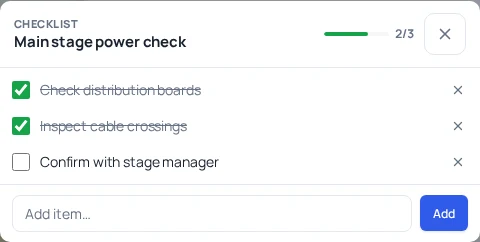
Anyone who can edit the task can change the checklist. Incidents do not have checklists: converting a task to an incident clears its list.
Due time and visibility#
- Due sets a deadline that is shown on the task and in lists.
- Visible from hides a located task from the map until that time. Use it to stage work for later in the event without cluttering today's map. Assignees and administrators can still open it.
Tags#
Tags are free-form labels such as Before show, After show or Forklift. A task can have up to 20 tags of up to 40 characters. Duplicates that differ only in capitalisation are merged, keeping the first spelling. Tags you have used before are offered as suggestions.
The task filters in the map and lists accept several tags at once and show tasks that match any of them.
Map pin label and colour#
By default a pin shows T for a task and is coloured by the assigned group or the priority. Under More options, the Map pin section lets you set a code of one to four characters drawn inside the pin (for example T1 to T8 to number tents) and a fixed colour. A fixed colour wins over the group colour and the priority colour. Clear both to return to the automatic look.
Move, duplicate, archive and delete#
| Action | Who |
|---|---|
| Edit, move, change status, archive | The creator, assignees, members of an assigned group, and administrators. |
| Duplicate | Anyone who can see the task. |
| Delete | The creator and full administrators. |
Duplicate makes a copy titled … (copy) with the same description, priority, tags, assignees, location, dates and pin look. The checklist is copied with every item unticked, and attachments are copied too, counting against your upload budget. Status and progress are not copied.
Archiving removes a task from the map and default lists without deleting it. Deleting removes it and its attached files.
My work#
Press W or choose My work to see every task assigned to you, directly or through a group, sorted and filterable, with due times and checklist progress. Select a row to open the task on the map.
Accounts set up as crew tablets by an administrator see and edit only the tasks assigned to them. Tasks they created but were not assigned are hidden from them, and notes and areas behave as usual. See Users, roles and access levels.
Attachments#
Tasks take the same photos and documents as notes: up to six per task, 2 MB per image and 10 MB per document. See Notes.
Offline#
Creating and editing tasks works without a connection. Changes wait in a local queue and are sent when you are back online. See Mobile, install and offline maps.